
rust
Editor Gizmos: 3D Transform Manipulation in Rust
A technical walkthrough of Helio's editor gizmo system — how translate/rotate/scale handles work, the ray intersection picking for handle selection, the axis-aligned rendering, and how everything integrates with the debug draw pipeline for zero-cost editor visualization.

Moving Objects in 3D Is Surprisingly Hard
At first glance an editor transform gizmo looks like the easy part of a renderer. Three colored arrows you drag to move things, three rings to rotate, three more arrows to scale. Maya, Blender, Unity, Unreal — they all have them, they all look roughly the same, and they all work exactly the way you expect. How hard could it be to build one?
Harder than it looks. The apparently simple problem of "click on an arrow and drag it to move the object along that axis" touches ray casting against analytic shapes, screen-space sizing so gizmos don't shrink when you zoom out, an axis-constraint drag solver that survives camera rotation mid-drag, and a rendering path that draws the handles on top of the scene with no depth fighting. By the time you also need rotation rings (ray vs torus intersection with a direction-encoding arc), scale handles (asymmetric drag with dead zones), and hover highlighting that transitions smoothly across all three modes, you've built a nontrivial piece of interactive 3D infrastructure.
This post walks through every piece of Helio's gizmo system: the editor state machine, the per-handle hit testing, the constraint-aware drag math, the debug-draw rendering pipeline, and the rough edges we haven't smoothed yet.
Three Gizmo Modes
Helio exposes three gizmo modes cycled via keyboard shortcuts (G/R/S in the editor demo). The mode determines both what gets drawn and how the drag math works.
Translate — XYZ arrows. Each axis is a colored line shaft with a filled cone tip. Dragging moves the object along the selected axis. The cone is sized as a fixed proportion of the total gizmo size (22% cone height, 6% cone radius relative to the shaft length) so it reads as an arrow at any camera distance.
Rotate — XYZ rings. Each axis draws a circular line loop in the plane orthogonal to its direction, plus a semi-transparent annulus (ring band) for the hover/fill region. Dragging spins the object around the selected axis by projecting the cursor onto the ring plane and computing the signed angle delta.
Scale — XYZ axes with box end-caps. Same shaft-as-line approach as translate, but instead of a cone the handle terminates in a filled cube with wireframe overlay. The drag delta is mapped to a scale factor along the selected axis, normalized by screen-space gizmo size so the sensitivity feels consistent regardless of camera distance.
Each mode is drawn by a dedicated function that takes the gizmo center, world-space size, hovered axis, and local-axes basis:
The local_axes array is extracted from the selected object's world transform columns (normalized), which means all three gizmo modes automatically follow the object's orientation. If the object is rotated 45° on Y, the translate arrows, rotation rings, and scale axes all rotate with it. This is critical for world-space vs local-space consistency — the gizmo always operates in the object's local frame.
EditorState: Selection, Hover, and the Drag State Machine
The entire gizmo system is driven by EditorState, a per-frame struct that tracks four things:
Selection is set by the scene picker (a BVH-based ray-caster in a separate module) or cleared on click-away. When nothing is selected, no gizmo is drawn and no hover events are processed.
Hover is updated on every CursorMoved event via update_hover(ray_o, ray_d, renderer). The method unprojects the cursor into a world ray, then delegates to hit_gizmo which tests each axis handle and returns the closest one within a threshold:
The critical design choice here is that hover is ray-based, not picking-based. We don't render a pick buffer and read back pixels. Instead we shoot the cursor ray against analytic representations of each handle (cylinder approximation for arrows, plane-proximity for rings) and pick the closest match within a pixel-derived world-space threshold. This is cheap — a few dozen dot products per frame — and avoids the GPU readback latency that makes pixel-perfect picking feel laggy.
Drag is a three-phase state machine implemented as an enum:
The lifecycle is:
-
try_start_drag(ray_o, ray_d, scene)— called on left-click press. Ifhovered_axisis set, snap the current transform, center, axes, and axis parameter into theActivestate. Returnstrueso the caller suppresses normal object picking. Returnsfalseto fall through. -
update_drag(ray_o, ray_d, renderer)— called on every cursor move while the button is held. Reads the frozen drag state, computes the new axis parameter from the current ray, applies the constraint, and writes the updated transform back to the scene. -
end_drag()— called on left-click release. Resets toIdle.
The reason the initial transform, local axes, and gizmo center are all frozen at drag start is drag stability. If you're translating along the X axis and the camera rotates (or the object rotates because another system affected it), we don't want the constraint direction to change mid-drag. The initial_transform captures the exact transform state when the drag began, and every frame computes the delta from that baseline rather than accumulating frame-to-frame deltas. This eliminates drift from floating-point error and from any external transform modifications during the drag.
Ray Intersection for Handle Picking
The hit testing lives in hit_gizmo, which dispatches on gizmo mode and returns the closest axis within a threshold.
Translate and Scale
For translate and scale, each handle is treated as a finite line segment from the gizmo center to the handle tip (shaft + end-cap length). We compute the minimum distance from the ray to each segment using Dan Sunday's line-to-line closest-approach algorithm, and pick the segment whose distance falls below a pixel-derived threshold:
The ray_to_segment_dist function finds the closest points between an infinite ray and a finite line segment, clamps the segment parameter to [0, 1], and returns the Euclidean distance. A 12% threshold of the gizmo world size (about 10 screen pixels at typical distances) gives a generous but not ambiguous hit zone.
This is an approximation — we're treating the cone and box end-caps as if they were part of the shaft line. In practice it works well because the end-caps are short relative to the shaft and the threshold is wide enough to cover their volume. A true cylinder or cone intersection test would be more accurate, but the line-segment approximation is significantly cheaper and the difference is imperceptible during normal use.
Rotate
Rotation ring picking is a plane-proximity test. For each axis, we compute the intersection of the ray with the ring's plane (the plane orthogonal to the axis direction passing through the gizmo center), then measure how far the hit point is from the ideal ring radius:
This is not a true ray vs torus intersection test. A real torus test would solve a quartic equation for the distance from the ray to the ring surface. Instead we approximate: intersect the ray with the ring plane, then check if the hit point lies within a band around the ring radius. This works great when the camera is looking roughly perpendicular to the ring plane but degrades at grazing angles, where the plane intersection point can be far from the actual ring surface even though the ray visually passes through the ring.
Screen-Space Gizmo Sizing
Gizmos must remain the same apparent size on screen regardless of camera distance. A gizmo on a distant object should be the same pixel size as one on a nearby object. The gizmo_world_size function converts a fixed pixel target (80 px) into a world-space length at the gizmo's depth:
The derivation: at a given distance d, a world-space length w projects to approximately w * fy * viewport_height / (2 * d) pixels. Solve for w given the desired pixel count. The fy term comes from the projection matrix's Y scale factor, which encodes the field of view. This means shrinking the FOV makes gizmos proportionally larger in world space to maintain screen-space size, which is exactly the correct behavior.
The camera info (position, projection) is set once per frame via Renderer::set_gizmo_camera and read back during hover and draw calls. We deliberately use the same camera info for both hit testing and rendering so the visual handle positions and the hit-test volumes are perfectly aligned — if they drifted, users would see the cursor highlight a handle before the ray visually reached it.
Drag Constraint Math
During a translate or scale drag, we need to project the cursor's 2D motion onto the selected 3D axis. We do this by computing the signed parameter along the axis line at the ray's closest approach:
This returns the parameter s along the infinite axis line such that axis_origin + s * axis_dir is the point on the axis closest to the ray. The difference s_now - s_start gives the world-space displacement along the axis. For translate, we directly build a translation matrix:
For scale, the world-space delta is converted to a fractional scale factor normalized by the gizmo's world size and clamped to prevent negative scale or zero-crossing:
The sensitivity factor of 1.5 / world_size means dragging one gizmo-length across the screen produces roughly a 1.5× scale change, regardless of camera distance. The max(0.01) clamp prevents the scale from going to zero or negative, which would flip the winding order and break culling.
For rotation, we project the cursor onto the ring plane and compute the signed angle using atan2:
The ring_frame function returns two tangent vectors orthogonal to the axis that span the ring plane. The order is chosen so that (tan × bitan) == axis_dir to maintain right-handed winding. The atan2(bitan_component, tan_component) gives the full signed angle in the plane, and the delta from the start angle produces a continuous rotation that follows the cursor around the ring.
Rendering Through the Debug Draw Pass
Gizmos render through Helio's DebugBatch system, which is part of the DebugDrawPass. The debug pass is a dedicated render pass that draws immediate-mode geometry — lines, triangles, spheres, cones, boxes — on top of the main scene with depth testing enabled but no depth writes. This means gizmos always render on top of scene geometry without z-fighting, and the debug pass itself runs after the main deferred pass in the render graph.
The draw_gizmos method acquires a DebugBatch via renderer.debug_batch(|dbg| { ... }), which collects draw commands into a per-frame vertex buffer. The debug batch interface exposes primitives like line, filled_cone, cone (wireframe), filled_box, and tri:
Each axis draws three primitives: a line for the shaft, a filled cone (triangulated into 16 segments) for the body, and a wireframe cone overlay for the edge. The filled_cone function generates triangle fans; the cone function generates line segments. Both take a direction vector and up/down extents so the cone points in the correct local-axis direction.
Rotation rings use a draw_ring function that steps around the circle generating line segments, and a draw_annulus function that fills the band with triangle quads:
Each annulus sector generates two triangles forming a quad between the inner and outer rings. With 64 segments and three axes, that's 384 triangles for the fill — trivial for the GPU. The entire gizmo rendering for all three modes totals fewer than 500 triangles and a few dozen line segments, which is well below the noise floor for any modern GPU.
Visual feedback is handled by the line_col and fill_col helpers. Each axis has a base color (R/G/B), which shifts to bright gold-yellow (HOVER = [1.0, 0.85, 0.05]) when that axis is hovered. The fill alpha increases from 0.35 to 0.65 on hover, making the active handle pop:
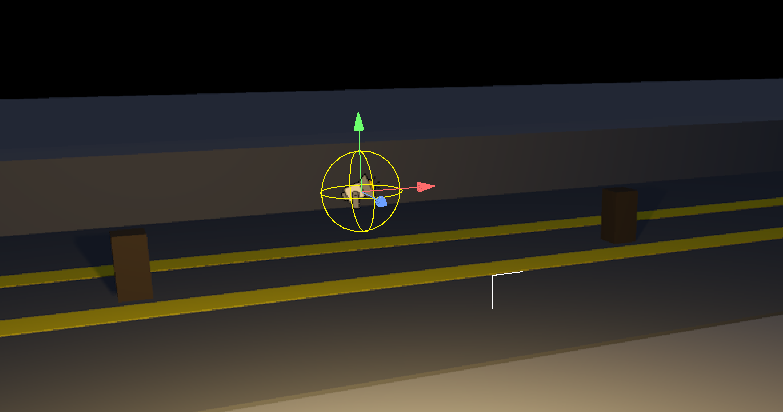
A yellow selection sphere is also drawn at the gizmo center (radius = 0.5 × gizmo world size) to indicate which object is active. This is the same sphere that appears during scene picking, so the visual feedback is unified.
Integration With the Scene Transform System
When a drag completes (or more precisely, on every frame during the drag), the updated transform is written back to the scene through the renderer's scene API:
This is not a fire-and-forget call. The scene internally marks the object's dirty bit, which triggers GPU-side buffer updates (the per-object transform buffer that feeds the indirect draw shaders). In Helio's GPU-driven pipeline, only the objects whose transforms actually changed get their GPU data patched, so dragging one object doesn't re-upload the entire scene.
The same path works for sectioned objects and lights. Lights get a simplified drag that only supports translate (position changes), since rotation and scale don't apply to point lights in Helio's lighting model. The light position update goes through a separate scene.update_light() method that patches the light buffer:
The duplication between object/sectioned-object/light drag handling is unfortunate but intentional — the scene API surface for each actor type is different enough that generic dispatch would add more complexity than it saves. A macro or trait-based approach might consolidate the translate path, but the rotate and scale paths only apply to objects with orientation and scale, which lights don't have.
Performance: Why Gizmos Are Essentially Free
The gizmo system's total per-frame cost breaks down into three parts:
-
Hover testing: 3 × ray-to-segment (or plane-proximity) tests per frame. This is ~30 dot products, a handful of divisions, and a min-of-three reduction. The
hit_gizmofunction is called once per frame regardless of scene complexity. -
Drag solving: Same cost as hover plus one matrix construction and one scene update call. The scene update propagates to a GPU buffer patch, but the CPU cost is a single row write.
-
Rendering: ~50-500 triangles submitted through the debug batch. The DebugDrawPass runs as a single GPU draw call per primitive type (lines + indexed triangles), so the driver overhead is negligible.
The total CPU time for gizmo processing is well under 0.01 ms per frame. The GPU cost is similarly invisible — 500 triangles at 1080p is roughly 0.001% of a modern GPU's fill rate.
The reason gizmo processing stays cheap is that we never touch the scene's BVH or triangle data during hover or drag. The gizmo hit tests are purely analytic: line-segment distance, plane intersection, circle-proximity. The only scene interaction is reading the selected object's transform (a 64-byte matrix copy) and writing back the updated transform. The scene's BVH is used exclusively for object picking (the first click that selects an object), which is an entirely separate code path in ScenePicker.
What We'd Improve
No post about gizmos is honest without the rough edges. Here's what doesn't work as well as we'd like.
Rotation ring picking is finicky near the origin. The plane-proximity approximation breaks down when the camera looks nearly edge-on at a ring. The plane intersection point can be far from the ring surface even though the ray visually passes through it, causing the hit to register on the wrong axis or miss entirely. A proper ray vs torus intersection would solve this but requires solving a quartic, which is expensive and numerically delicate. We've experimented with a multi-sample approach (test multiple points along the ray near the ring plane) but haven't settled on a solution that's both robust and cheap.
Scale gizmo needs a center-cube handle. Currently, to scale uniformly on all axes you must switch to translate and type a uniform scale value, or scale each axis individually. A center-cube (like Blender's) that scales uniformly when dragged would complete the scale interaction. The difficulty is distinguishing a center-cube drag from an accidental near-miss on an axis shaft, especially at grazing angles where the center and shaft endpoints overlap in screen space.
Axis-alignment ambiguity at degenerate angles. When the camera aligns exactly with a gizmo axis, that axis becomes a point in screen space and the ray-to-segment distance test collapses. The handle is still technically there but has zero screen-space extent, making it impossible to hit. We mitigate this with a minimum screen-space handle width (the threshold is never smaller than ~3 pixels), but it still feels bad to have an axis vanish at certain angles. True fix would be to apply a minimum screen-space projection to each handle, widening it when the axis is edge-on.
No snapping. The current system applies raw drag deltas with no quantization. Grid snapping for translate, step snapping for rotate, and unit snapping for scale are all absent. Adding them is straightforward — quantize the delta before building the transform — but we haven't wired it through the UI yet.
Looking Forward
The gizmo system replaced an earlier iteration that used screen-space manipulation (project the mouse delta onto the view plane, then back-project onto the axis), which had a disorienting property where dragging toward the camera felt different from dragging perpendicular to it. The current ray-based approach gives consistent behavior regardless of camera angle, and the analytic hit testing is fast enough that we never consider moving it to the GPU.
The next steps are snapping, a proper torus intersection for rotation rings, and the center-cube scale handle. Beyond that, the architecture supports adding new gizmo modes (shear, mirror, alignment) with no changes to the state machine or rendering path — just a new GizmoMode variant and the corresponding draw/hit-test functions.
If you're building a 3D editor and wondering whether to build gizmos or integrate an existing widget library, the answer depends on how much you care about the interaction model. Gizmos are deceptively simple in appearance but surprisingly deep in implementation. Building them yourself means you own every detail of the feel — the hover thresholds, the drag sensitivity, the color transitions, the degenerate-case handling. It also means you get to fix them when they break, which in our experience is the only way to make them truly good.